Showing posts with label linux. Show all posts

Monday, August 18, 2014

Setup Brother Printer on 64bits debian base linux, like CrunchBag or Ubuntu

I just get a new printer - Brother HL-2270DW series. It's compatible with linux and brother have drivers for it! Unfortunately, the driver is for 32bits (i386) systems. So what next?

I assume USB connection.

It is simple really. All we have to do is to config our system to support multiple architecture, aka Multiarch, and then use the 32bits drivers. You can read about debian Multiarch here.

First we have to add i386 architecture support to your system by:

## add i386 support
$ dpkg --add-architecture i386
## and update the system
$ apt-get update
Then we need the add i386 support library. Since la32-libs is replace by libstdc++:i386, so we have to do the following
## add i386 support libraries
$ apt-get install libstdc++:i386
Once we finished adding support library for our i386 architecture, then we just simply install drivers downloaded from Brother website:
## install drivers start from "LPR printer driver"
$ dpkg -i hl2270dwlpr-2.1.0-1.i386.deb
## and then "CUPSwrapper printer driver"
$ dpkg -i cupswrapperHL2270DW-2.0.4-2.i386.deb
We can download the drivers from brother website here:

To confirm that drivers install correctly, just run:
$ system-config-printer

Saturday, April 5, 2014

Linux on Android using Complete Linux Installer: Hiccup and Fix!

The benefit of having a full linux distribution running on android device, such as Asus transformer Prime/Infinity, is up to who you are. For me as a developer, it's really a great platform for me to play around with new language, practice new skill and, experiment with new tools without mass up with my work notebook. For sys admin, it's quite a nice to have a full bowl linux to work on ... And I think Complete Linux Installer does a good job helping me to setup a linux distribution on android device.

Nothing perfect thou. There are a few hiccup ... a few annoying issues which may or may not have a fix for it. Keep in mind, the app allow to have a full linux running on android by chroot to a linux image, and connect to it with vnc or ssh. There will be some issues that there is no solution for it (or there is but I don't know :p)

Where is my eth0?

First hiccup after boot the system is this error message:
If connecting from a different mach ... android device use the address below:
eth0: error fetching interface information: Device not found

This is a simply the /root/init.sh expect the network interface to be "eth0". Unfortunately, that is not always true. To find out which interface you have, use "ifconfig". In my case, it is "wlan0".

To fix this, simply edit /root/init.sh script. Change "eth0" to "wlan0", in my case, and you will be done.


How much disk space I have?, "df" issue

This is quite annoy when simple command like "df" (diskfree) doesn't work at all. It's not report any thing. This is because the "df" command can not read file table which provide this information. Fortunately, there are easy solution for issue if all you want is to see how much disk space available.

By simply alias "df" to take which file system to report on, it's solve the problem. This time you edit /root/.bashrc script to add alias, as shown. This fix is only report disk space on "/" and "/sdcard", and it's not useful for other system tools which require to have device information.


Where is my external sdcard?

Like me, you probably have external microsd card install with the system. Is the "/sdcard" refer to this external sdcard? ... No it's not. It's the internal sdcard that come with the prime tablet.

Sorry to say, I don't know the answer to this question because the external sd card is mount on "/Removable/SD" which can not be access in the chroot system. There might be a way to allow access to /Removeable/SD from the chroot system, but I do not know now. If you know, please comment below. :)

Can I create normal account? What do I need to know?

Obviously, running the system as root is not a good idea. First thing, create a user using command
$ adduser new_user

What you need to do after that is adding the new_user to the following groups:
This will allow new_user to use network and also access both read and write to internal sdcard.

I also recommand to add new_user to group: sudo, users, ssh, and crontab if you plan to use it.

However, it's still booting directly to root! Obviously, you can just type

$ su -l new_user

And you will be right at home. However, it's an extra step to do after boot, which kinda annoying.
However, we can do this automatically but edit "/root/init.sh" once again.


The line "/bin/bash -i" is responsible for spwan a shell. We just has to replace that line with
"/bin/su -l new_user" and the system will boot directly to the new_user.

That's it! for today. See you next post ... which I will try to get more memory to the system by enabling swap image. :)

Using Linux on Android with Complete Linux Installater and debian testing-Large image.

If you have android tablet/phone and you wish to use full linux on it. You are in luck. I am running one on Asus Transformer Prime. You need to root the device thou. You can find out how to root your device from xda-developers.com.

Here is going to be my experience with "Complete Linux Installater" app, which you can find it on the app store for free. There is also a donation version too, $3.50.

What I like about Compete Linux Installer, is simplicity, good guide line and various of distribution of linux you can choose from. 

I start with debian testing (Jessie) small image. It's 2GB image file, and very easy to setup ... just follow the instruction and it will be done in second after long downloading and extracting of the image. There are a few hiccup that might consider annoying. I have fixed some of these "hiccup", and shared with you later.

Setup with debian testing LARGE image file:

Get back to my major issue. Since 2GB is too small after I try to get some serious work on it, I try debian testing LARGE image. This time it's not that simple any more. I find couple major issues with it.

Get The Right File:

First of all, the zip large image that I download by follow the app is damaged and can not be extract. I try different mirrors, always get the same result. So I googling and find this 

which you can directly download. Notice that there are couple of  images you can download from,
debian-testing, debian-8.LARGE.ext2 and debian-8.LARGE.ext4 ... The question is which one?

If you follow the app, it will download debian-8.LARGE.ext2 file, which about 500MB. This is the damage one. Since debian-8.LARGE.ext4 is about the same size, it's also damage one. The one that you have to download is

debian-testing.LARGE.ext4 (1.0GB) file.

Change the Script:

After a long wait for downloading and extracting, I expecting this image should work like a charm! ... Unfortunately, the bootscript is expecting the file system to be ext2, not ext4.  This can be solved pretty easily by changing the bootscript. The bootscript.sh is located here:
/data/data/com.zpwebsites.linuxonandroid/files/bootscript.sh
Use any editor you like, obviously :) ... and looking for the word "ext2", and the line is look some thing like this:
$bbox mount -t ext2 /dev/block/loop255 $mnt
$bbox is refer to "busybox" which the app provided. You can change to the one that you like, but I won't recommend. $mnt is the mount point, which is /data/local/mnt. Since the large image that I download is using ext4, I would have to change "ext2" to "ext4". The line become:
$bbox mount -t ext4 /dev/block/loop255 $mnt

At this point you should be about to boot up the debian testing LARGE image with ext4 file system, and enjoy 3.5gb space!

Next post, I am going to talk about hiccup that annoyance me and how I fix it.

Sunday, October 14, 2012

Setup Keyboard Layout for OpenBox

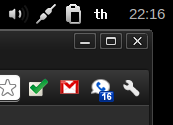
OpenBox doesn't have a keyboard layout setup program to assist you, as ubuntu or window does. However it is not that difficult to do it yourself.  There are two things that you need to do: add new keyboard layout and show what current layout you are using. The easiest way to setup US and Thai keyboard layout for OpenBox is to add this two commands into you OpenBox autostart file, locale at: ~/.config/openbox/autostart

## enable thai keyboard 
setxkbmap -layout us,th -option grp:toggle
xxkb &
The command setxkbmap is setting layout to US(us) as the first layout and Thai (th) as second. I choose right-alt key to switch the layout by using option 'grp:toggle'. Learn more about other layouts or options, look at the file '/usr/share/X11/xkb/rules/base.lst'. You might want to read resources I listed at the end of the post too.

The second command xxkb will give you a layout switcher and indicator on your panel. Make sure you have the "&" at the end of the line, otherwise the autostart won't finished. The xxkb need a config file '.xxkbrc' in your home directory. Here is mine:

Thursday, October 11, 2012

Transformer Prime and Linux Installer

Android is a great platform for consuming. I means, using it for internet, email, read books, keep your notes, etc. One may go as future as write a book, create art work, edit photos, compose musics, etc. There is an app for every thing you want, even for a linux enthusiastic like me. What I mean is I can use linux side by side with android.

First of all, you can find instruction to install Ubuntu on prime here on the xda-developers site, if you are interested. It's risky, but you will get full ubuntu running on the prime. I won't go into this approach thou. It's not what I aim for.

For me, I prefer another method, chroot to a linux image file. This method allow me to run linux along side with android. I can do things that android does great, like reading email, facebook, websurfing, view pictures, read books, etc. I also can do things that normally android won't allow you. Actually, I can do pretty much every thing that linux provide you.

The idea is to create a linux image file on your android device, mount the image file to android system, and chroot to it.

Guess what, there is an app for that too. It's call "linux installer". Unfortunately, it's some what doesn't work perfectly on transformer prime.

The app work only with rooted device, which mean you need to unlock you prime. After installed linux installer 4.1 (the version at the time this blog is written) from the market to your prime, you have to setup before you can go ahead with installation by select menu and setup. By default, there are couple options are disable. I choose to enable all of them, specially
  • Bind Android
  • Allow write to /system
  • Allow remount with dev/exec
should be turn on. It's make the chroot integrate better with android.

By default, the debian/squeeze is chosen for distribution/version. Don't forget to choose your hostname, and domain name. I leave the chroot launcher script and other options untouched. 

For the loop file location, I leave it at the default location. You should take note where it is. My is "/storage/sdcard0/Linux.loop". It's important that you need to know about this.

For the loop file size, it's need to be above 300MB. However, we are not going to use this loop file anyway, so choose some thing small, say 300.

Saturday, September 29, 2012

Note: Amazon Prime & Flash


I migrate from Xbuntu to Crunbhbang Linux a couple days ago. Until today, I have not have a chance to test amazon prime video service yet. I try today, and guess what I can not watch video any more.

I look around for solution, and found this Ask Ubuntu page, which intern point to the Adobe support page that contains the solution. I make a copy over here for my own reference :)

Prerequisites for protected content playback


For Ubuntu 10.04 or later, ensure that the Hardware Abstraction Layer module is first installed using apt-get.
(Watch carefully for “hal” install errors, as a damaged package install can continue to affect video playback.)
sudo apt-get install hal
After the "libhal" (HAL) library install completes, close the browser and clear the Adobe Access directories by executing the following shell commands:
cd ~/.adobe/Flash_Player
rm -rf NativeCache AssetCache APSPrivateData2
Note:
If the Hardware Abstraction Layer module is missing, Flash Player still functions. However, it cannot play protected content that requires the Adobe Flash Access DRM (Digital Rights Management) module.

Note: Buildroid for VirtualBox

With is Buildroid for VirtualBox, I can have android 4.0.4 running on VirtualBox. All you have to do is download the ova file, one of the open visualization format. Import the file to VirtualBox, and turn it on!

It's good for the development, that for sure. If you like, you can just play around with it.

Crunchbang Linux and VirtualBox

Crunchbang is base on Debian. However, the virtualbox is a well known issue with crunchbang. When I try to install virtualbox from the repository (the OSE - Open Source version), it won't work out of the box. A quick googling, you would find couples link related to this issue.

One solution is to install official Oracle version, which you can follow the instruction found here: VARIOUS VIRTUALBOX INSTALLATION.

Unfortunately, after adding new source and apt-get update. I got this error messages:
W: GPG error: http://download.virtualbox.org wheezy InRelease: 
The following signatures couldn't be verified because the
public key is not available: NO_PUBKEY 54422A4B98AB5139

After quick googling again, I found this page, which provide me a solution:

gpg --keyserver pgpkeys.mit.edu --recv-key 54422A4B98AB5139
gpg -a --export 54422A4B98AB5139 | sudo apt-key add -

I believe that allow me to update Debian APT key. After these steps done, I can continue and finished the virtualbox installation. Anyway, before install virtualbox-4.1, I do "apt-get search virtualbox", and found that 4.2 also available. I just simply install 4.2 instead of 4.1.