Showing posts with label crunchbang. Show all posts

Monday, August 18, 2014

Setup Brother Printer on 64bits debian base linux, like CrunchBag or Ubuntu

I just get a new printer - Brother HL-2270DW series. It's compatible with linux and brother have drivers for it! Unfortunately, the driver is for 32bits (i386) systems. So what next?

I assume USB connection.

It is simple really. All we have to do is to config our system to support multiple architecture, aka Multiarch, and then use the 32bits drivers. You can read about debian Multiarch here.

First we have to add i386 architecture support to your system by:

## add i386 support
$ dpkg --add-architecture i386
## and update the system
$ apt-get update
Then we need the add i386 support library. Since la32-libs is replace by libstdc++:i386, so we have to do the following
## add i386 support libraries
$ apt-get install libstdc++:i386
Once we finished adding support library for our i386 architecture, then we just simply install drivers downloaded from Brother website:
## install drivers start from "LPR printer driver"
$ dpkg -i hl2270dwlpr-2.1.0-1.i386.deb
## and then "CUPSwrapper printer driver"
$ dpkg -i cupswrapperHL2270DW-2.0.4-2.i386.deb
We can download the drivers from brother website here:

To confirm that drivers install correctly, just run:
$ system-config-printer

Sunday, October 14, 2012

Setup Keyboard Layout for OpenBox

OpenBox doesn't have a keyboard layout setup program to assist you, as ubuntu or window does. However it is not that difficult to do it yourself.  There are two things that you need to do: add new keyboard layout and show what current layout you are using. The easiest way to setup US and Thai keyboard layout for OpenBox is to add this two commands into you OpenBox autostart file, locale at: ~/.config/openbox/autostart

## enable thai keyboard 
setxkbmap -layout us,th -option grp:toggle
xxkb &
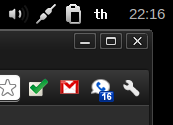
The command setxkbmap is setting layout to US(us) as the first layout and Thai (th) as second. I choose right-alt key to switch the layout by using option 'grp:toggle'. Learn more about other layouts or options, look at the file '/usr/share/X11/xkb/rules/base.lst'. You might want to read resources I listed at the end of the post too.

The second command xxkb will give you a layout switcher and indicator on your panel. Make sure you have the "&" at the end of the line, otherwise the autostart won't finished. The xxkb need a config file '.xxkbrc' in your home directory. Here is mine:

Saturday, September 29, 2012

Crunchbang Linux and VirtualBox

Crunchbang is base on Debian. However, the virtualbox is a well known issue with crunchbang. When I try to install virtualbox from the repository (the OSE - Open Source version), it won't work out of the box. A quick googling, you would find couples link related to this issue.

One solution is to install official Oracle version, which you can follow the instruction found here: VARIOUS VIRTUALBOX INSTALLATION.

Unfortunately, after adding new source and apt-get update. I got this error messages:
W: GPG error: http://download.virtualbox.org wheezy InRelease: 
The following signatures couldn't be verified because the
public key is not available: NO_PUBKEY 54422A4B98AB5139

After quick googling again, I found this page, which provide me a solution:

gpg --keyserver pgpkeys.mit.edu --recv-key 54422A4B98AB5139
gpg -a --export 54422A4B98AB5139 | sudo apt-key add -

I believe that allow me to update Debian APT key. After these steps done, I can continue and finished the virtualbox installation. Anyway, before install virtualbox-4.1, I do "apt-get search virtualbox", and found that 4.2 also available. I just simply install 4.2 instead of 4.1.